
BarePumps · step by step
How to run your service station on BarePumps
From setting up your pumps to the month-end report: what to do once, what attendants and the cashier do every shift, and what the owner checks.
1. Set up grades, tanks and pumps (once)
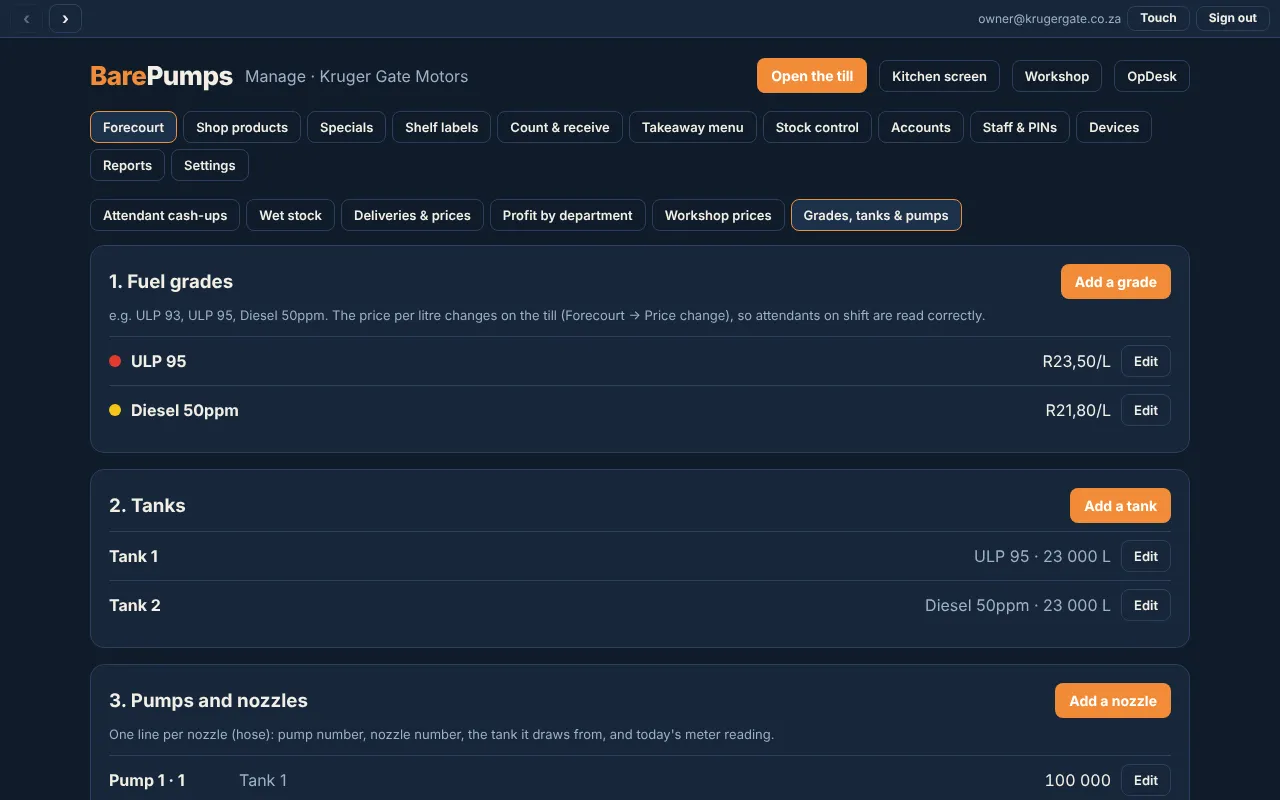
- Open Back office as the SysAdmin and go to Forecourt → Grades, tanks & pumps.
- Add each fuel grade (ULP 93, ULP 95, Diesel 50ppm) with today's price per litre.
- Add your tanks: which grade each holds and how many litres it takes.
- Add one line per nozzle: pump number, nozzle number, the tank it draws from, and today's meter reading.
- Under Staff & PINs, add your attendants and cashiers, and give a manager a PIN. Under Settings, fill in Business details for your receipts.
Take the meter readings from the pump display at the same moment you dip the tanks, so your first wet-stock report starts clean.
2. Start an attendant shift
- On the till, a manager signs in and taps Forecourt.
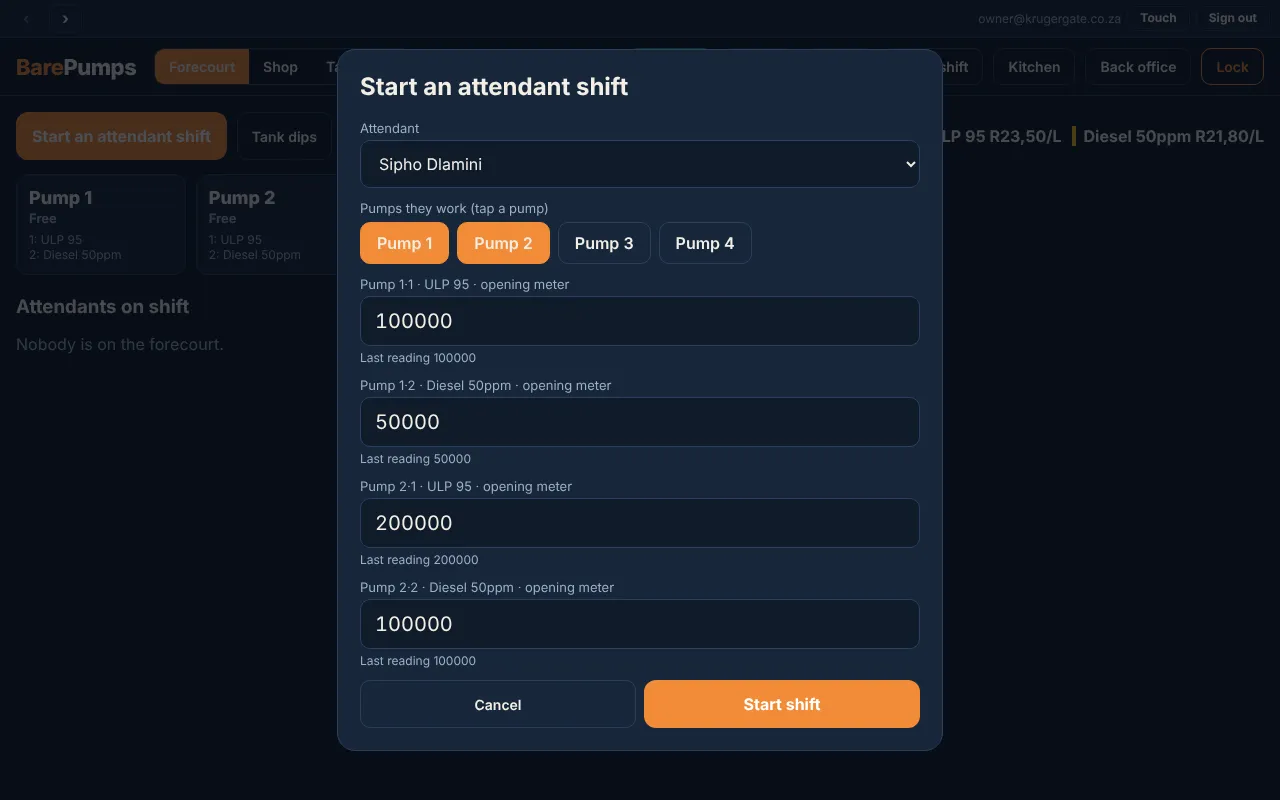
- Tap Start an attendant shift and pick the attendant.
- Tap the pumps they will work. The last meter reading fills in; check it against the pump and correct it if it differs.
- Tap Start shift. The pumps turn green with the attendant's name.
Two attendants can't be on the same nozzle at once, so every litre belongs to one person's cash-up.
3. End the shift and cash up
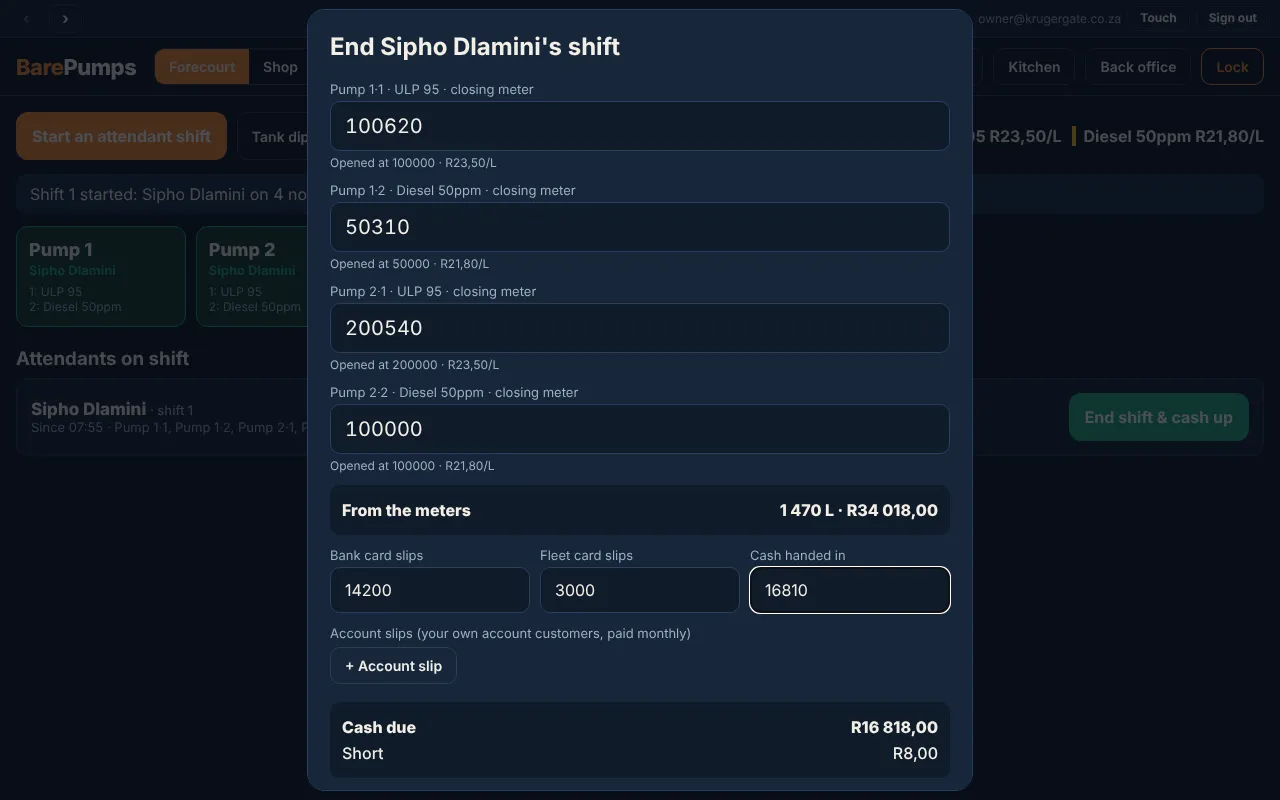
- Tap End shift & cash up next to the attendant.
- Type the closing meter on each nozzle. BarePumps shows the litres and rands the meters say were sold.
- Add up the attendant's slips: bank card slips in one box, fleet card slips in the other.
- For your own account customers, tap + Account slip: the account, the grade, the amount, and the litres and vehicle registration if you have them.
- Type the cash handed in and tap Cash up. You see short or over straight away.
A shortage is booked as an expense (Cash shortages), so it shows in the profit and loss without anyone typing it in twice.
4. Book a fuel delivery
- Dip the tank before the tanker offloads.
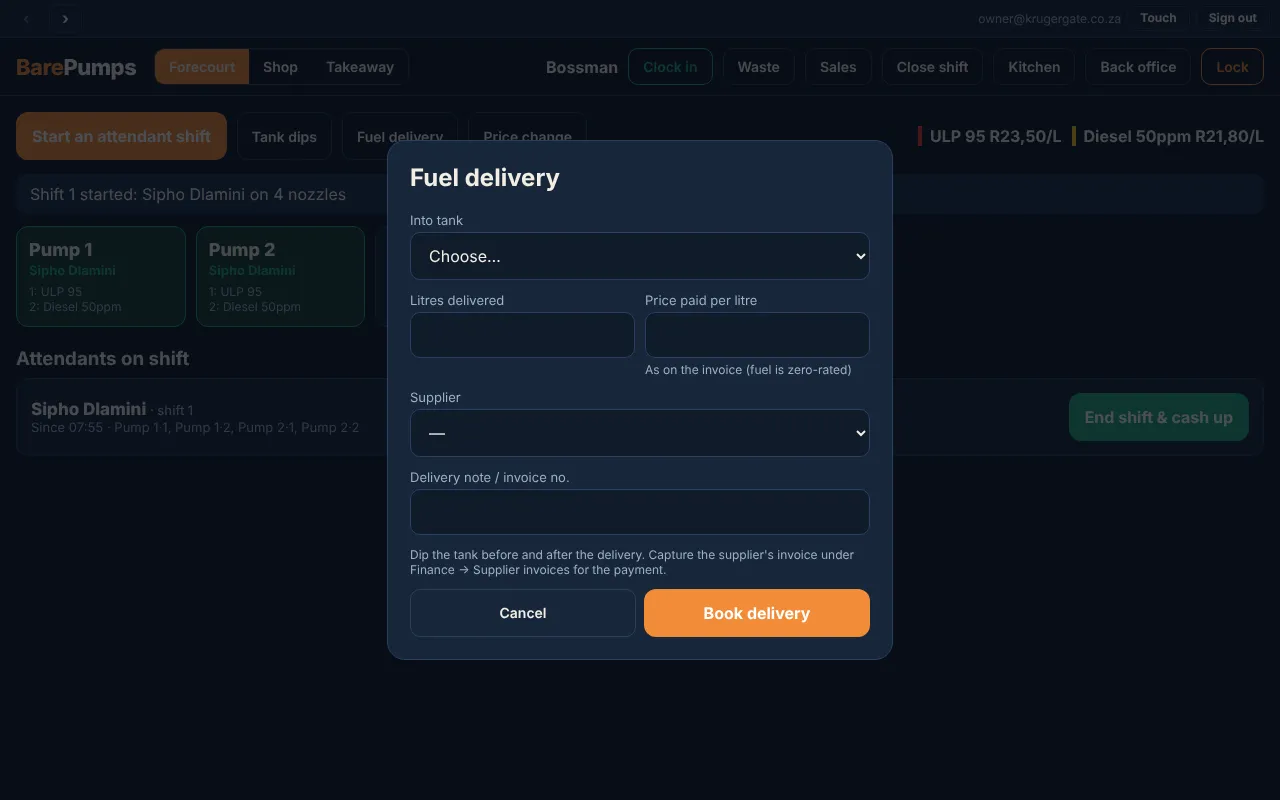
- Tap Fuel delivery, pick the tank, and type the litres and the price per litre from the delivery note.
- Pick the supplier and type the delivery note number, then tap Book delivery.
- Dip again after the delivery. Capture the supplier's invoice under Finance → Supplier invoices when it arrives.
The price per litre you type becomes the cost of the fuel, so the forecourt margin per litre is right.
5. Change the fuel price
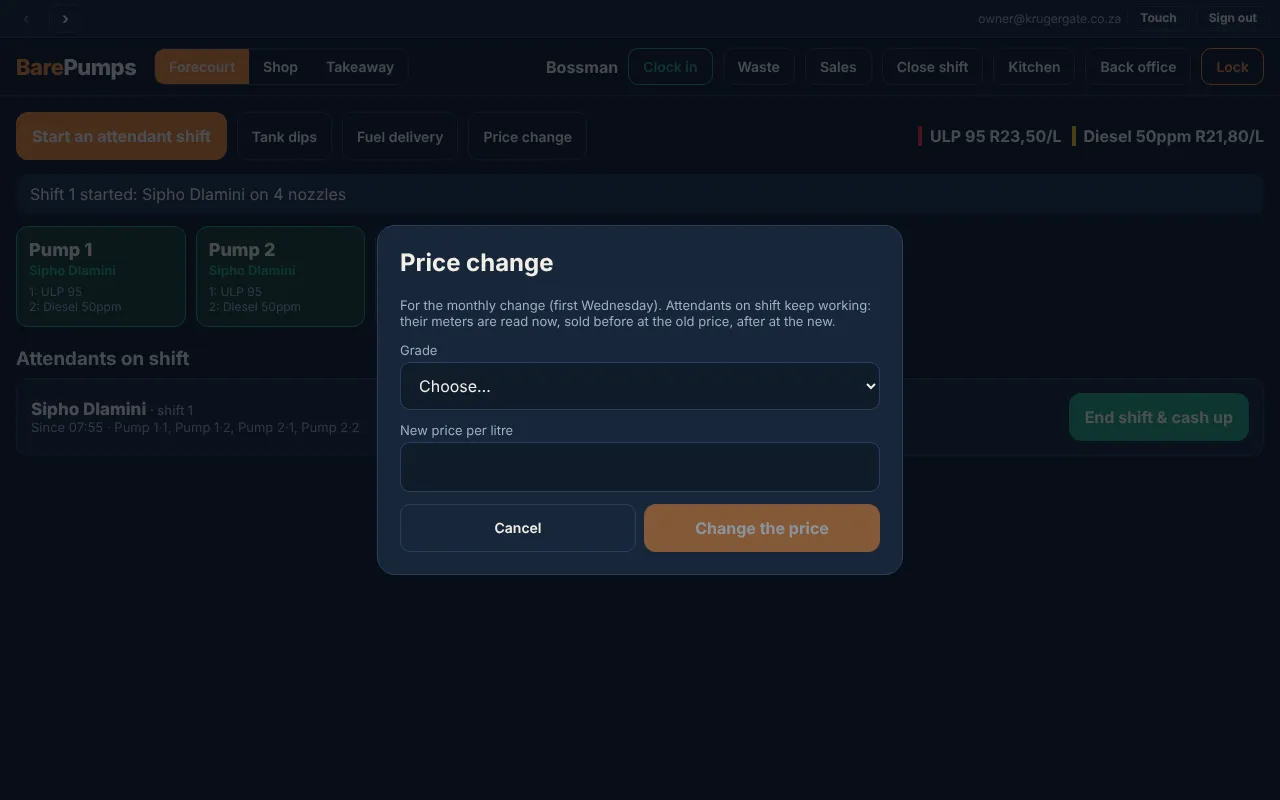
- On the day the price changes (usually the first Wednesday of the month), a manager taps Price change.
- Pick the grade and type the new price per litre.
- If attendants are on shift on that grade, type the meter reading on their nozzles now.
- Tap Change the price. Litres before the reading are sold at the old price, after it at the new one.
6. Dip the tanks and check wet stock
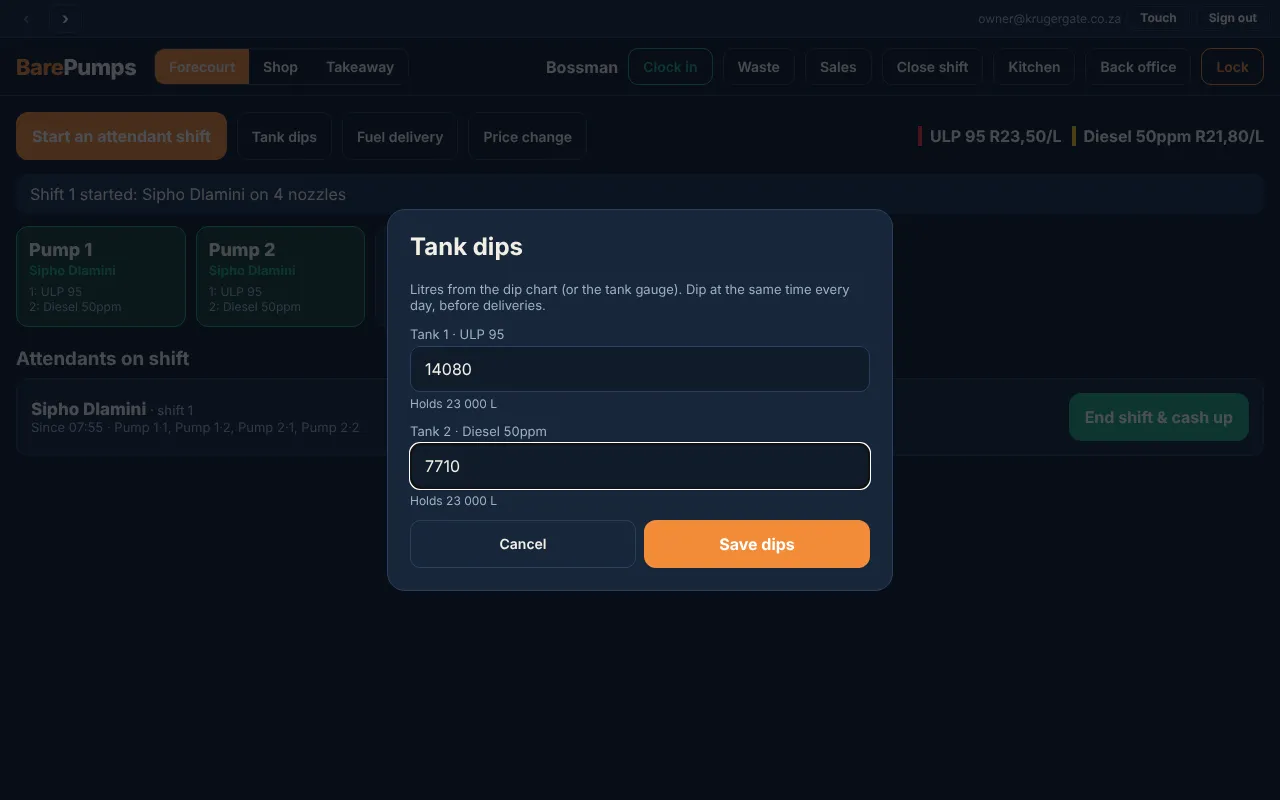
- Dip every tank at the same time each day, before any delivery, and read the litres off your dip chart.
- Tap Tank dips, type the litres per tank and tap Save dips.
- In Back office → Forecourt → Wet stock, pick two days: you see opening dip + delivered − sold against the closing dip, per tank.
- A loss of more than about 0.5% of sales, often, is worth checking: leaks, theft, meter calibration or the dip chart.
7. The shop till and fleet cards
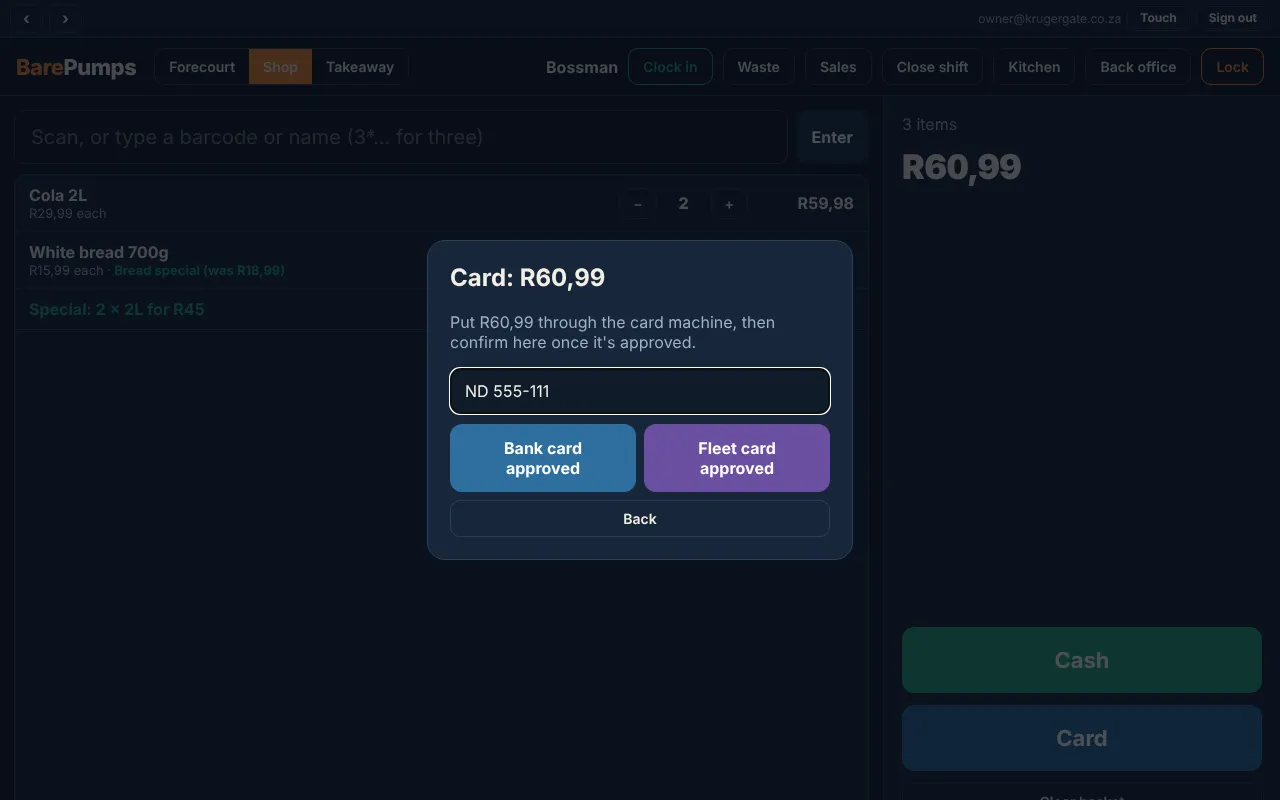
- Tap Shop on the till, then scan the products. Specials and mix-and-match deals work themselves out.
- Tap Cash or Card. For a card, put the amount through the card machine.
- When it's approved, tap Bank card approved, or Fleet card approved for a fleet card. Type the vehicle registration if you want it on the slip.
- The receipt prints with your business details. Fleet card sales are totalled apart from bank cards.
8. Run the workshop
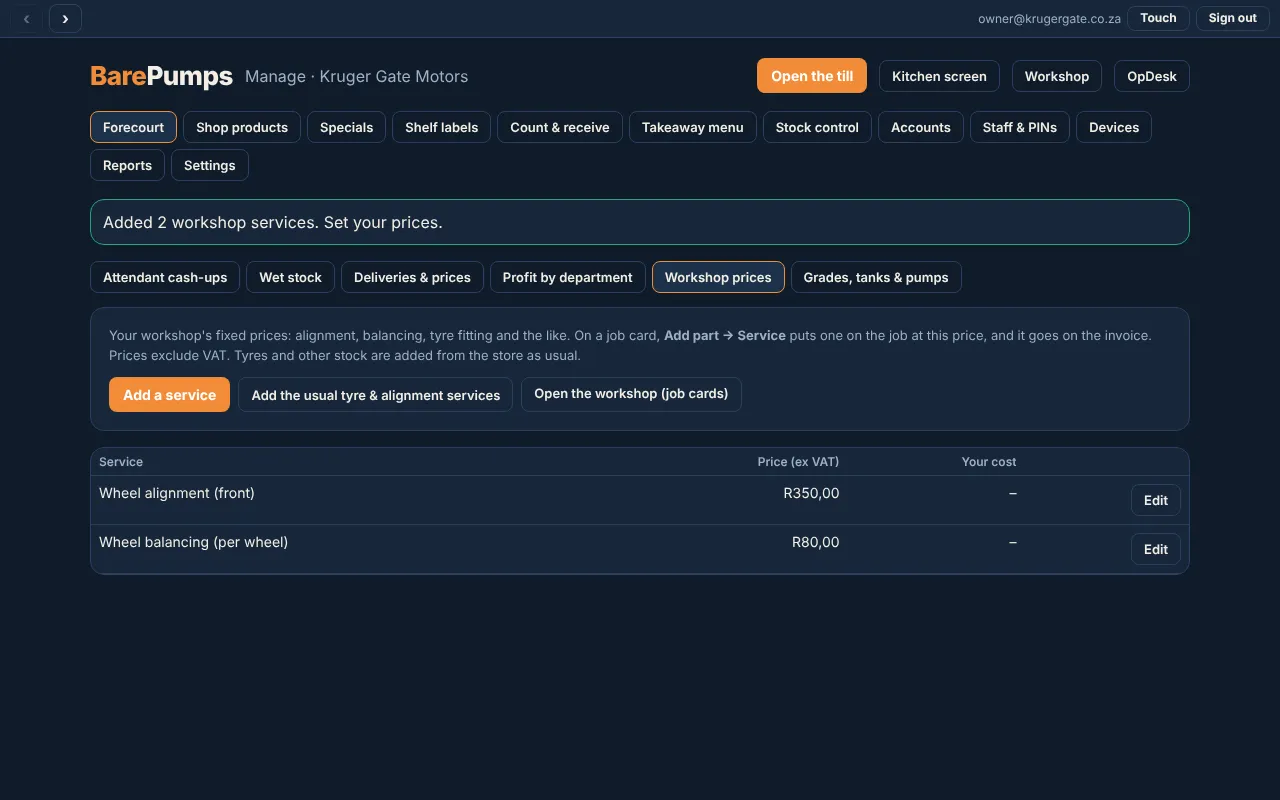
- In Back office → Forecourt → Workshop prices, tap Add the usual tyre & alignment services and set your prices.
- Open the workshop (Back office → Workshop) and make a job card for the customer and vehicle.
- On the job card, tap Add part → Service to add alignment, balancing or fitting at your price, or add tyres and parts from stock.
- Save the alignment machine's report as a PDF and add it under Machine reports & documents on the job card.
- When the job is done, tap Create invoice. The invoice counts towards the workshop's sales.
9. Month-end: profit by department
- Capture rent, electricity, water and other bills under Finance → Expenses, and staff pay under Staff → Costs.
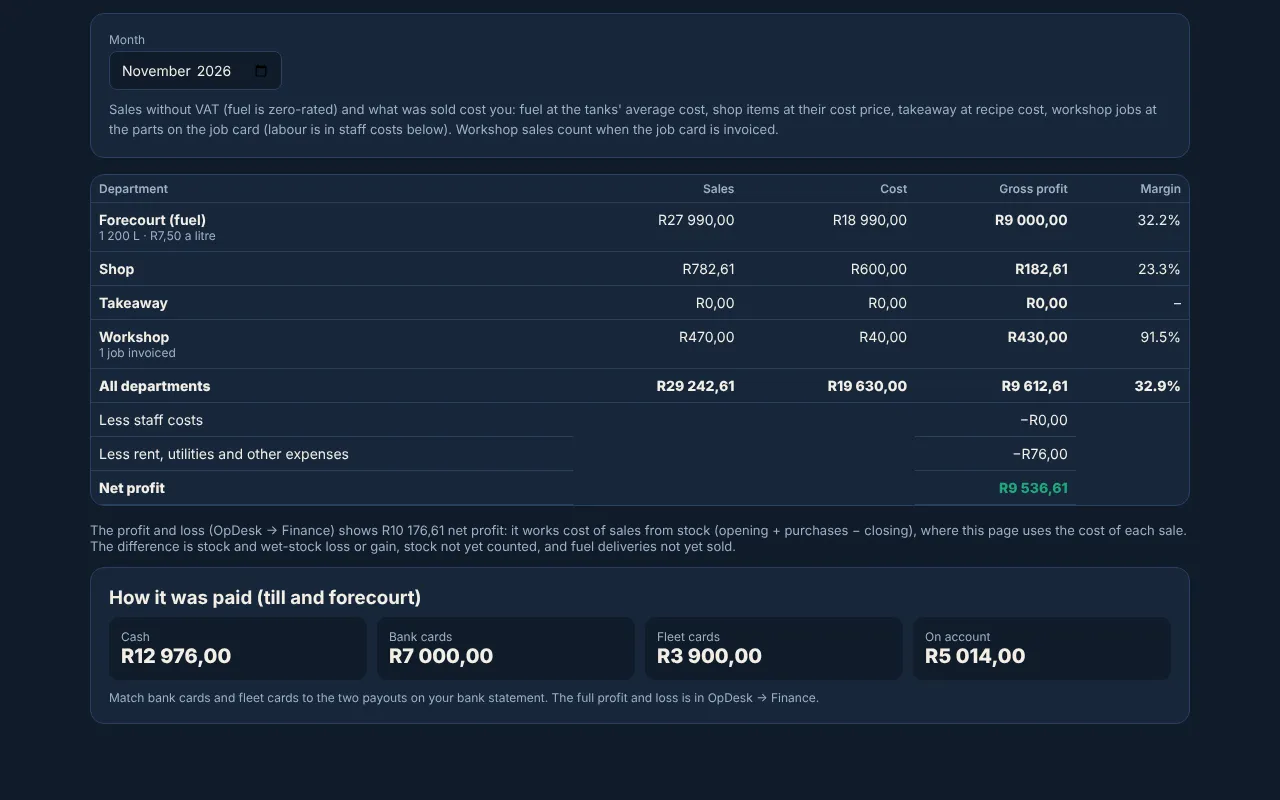
- In Back office → Forecourt → Profit by department, pick the month.
- Check sales, cost and margin for the forecourt, shop, takeaway and workshop, and the fuel margin per litre.
- Match the cash, bank card and fleet card totals to your bank statement. The full profit and loss and VAT report are in OpDesk → Finance.
Ready to try it?
Install BarePumps on the station's office PC and use it free for 14 days. Set up one pump, run a shift, and cash up.