Tap the burger.Take the money.Know what you made.
BarePOS is till software for takeaways and small shops in South Africa. It runs on your own Windows PC, keeps selling when the internet goes down, and keeps track of your stock and food costs while you sell.
For Windows 10 and 11. You’ll need a licence key to install.
Your menu, as pictures
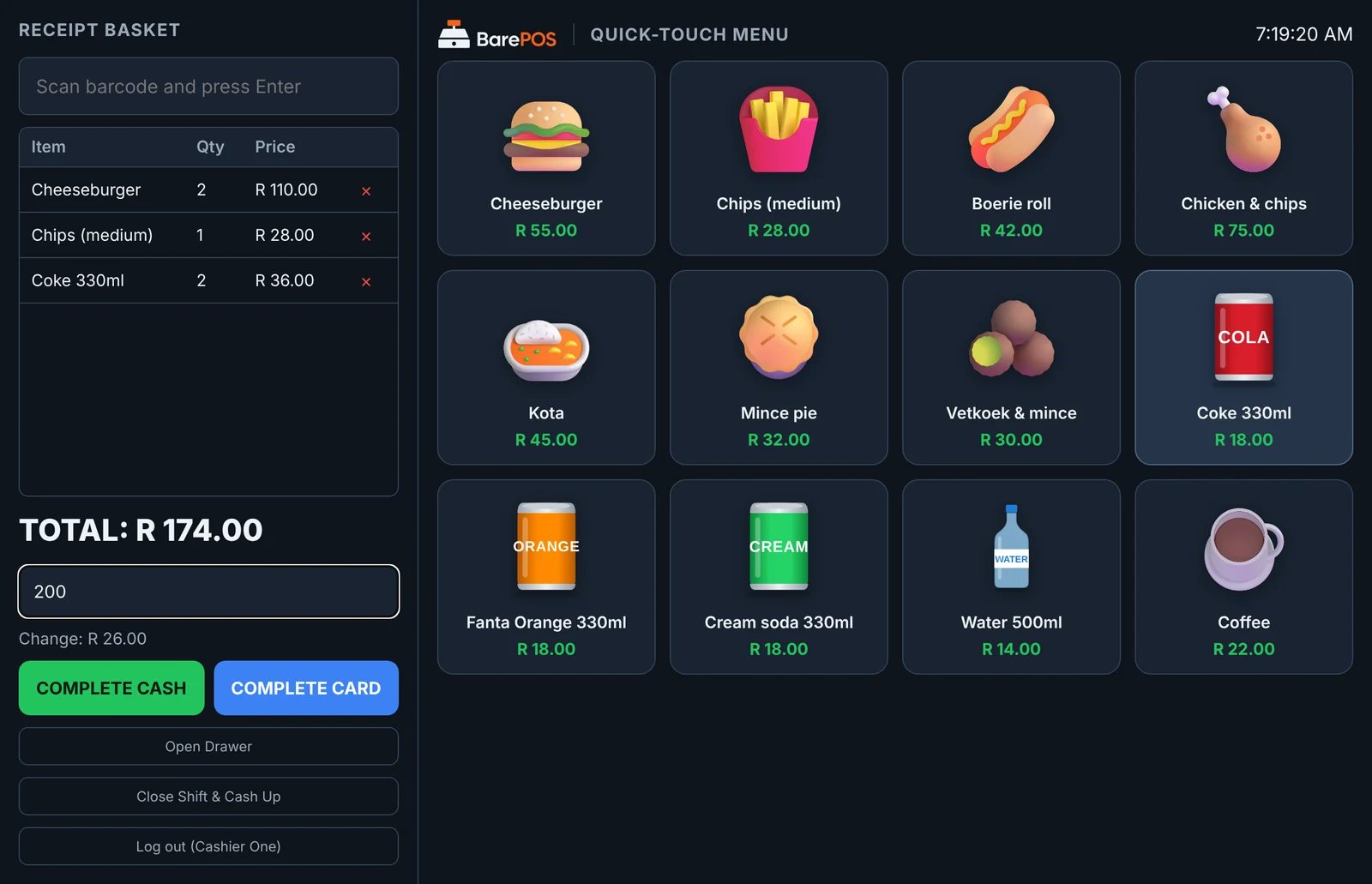
Cashiers tap a burger, a kota or a can of cola instead of hunting for codes, so a new staff member is ringing up sales on their first shift. Choose from over 100 built-in pictures or photograph your own products. Barcode scanners work as soon as you plug them in.
A day at the counter
Here’s what BarePOS does for you from the first sale to the last.
Open the till
Count the cash float and type it in. BarePOS opens a shift, so tonight’s cash-up knows exactly what you started with.
Get through the lunch rush
Tap pictures, scan barcodes, take cash or card. The receipt prints and the cash drawer opens by itself. Every sale takes its ingredients out of stock: two cheeseburgers use two buns, two patties and two cheese slices.
Book in the bread delivery
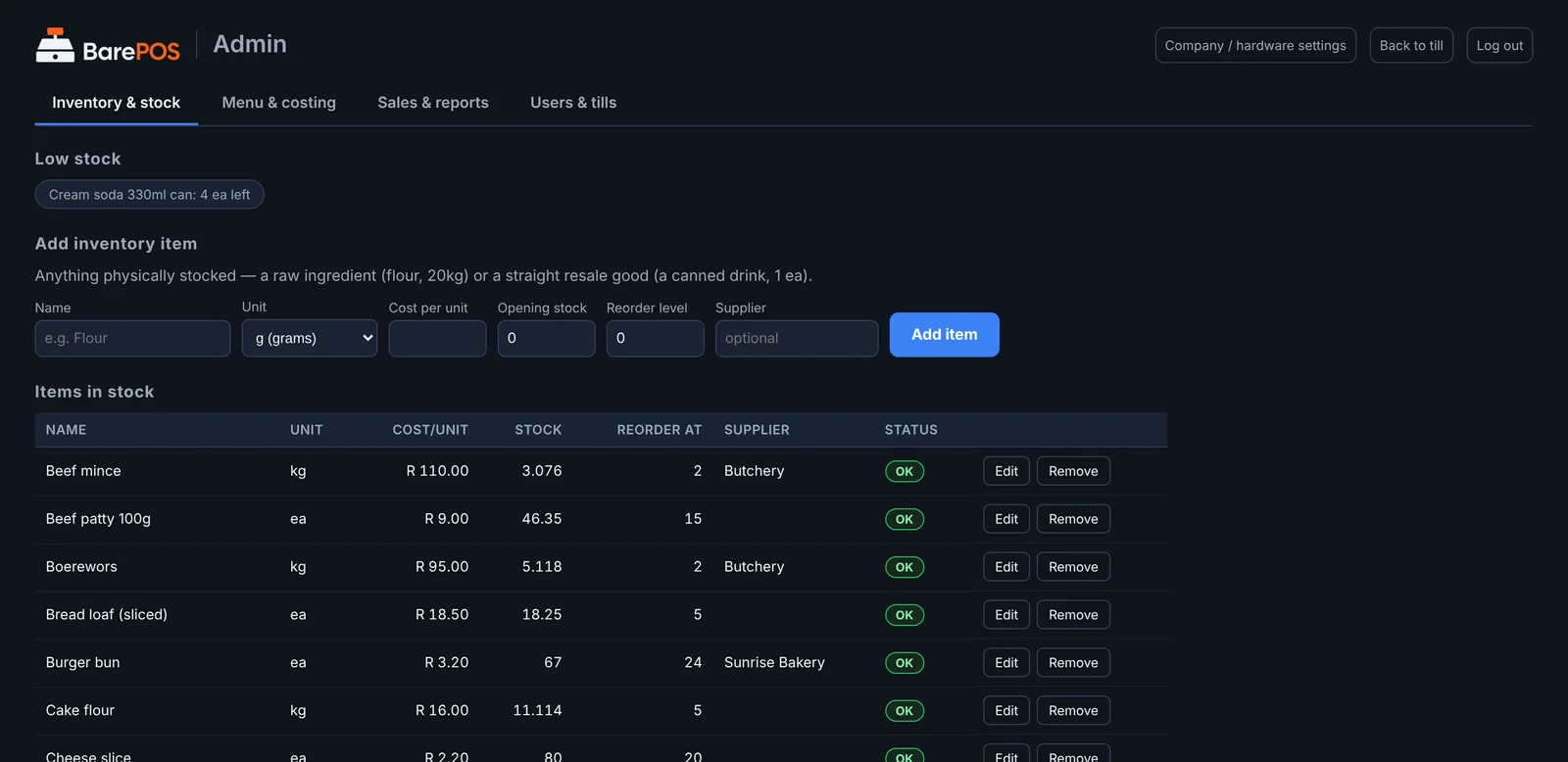
Record deliveries, spoiled stock and stock counts in a few taps. BarePOS warns you before you run out of anything, and keeps a record of every change.
Check what each item costs you
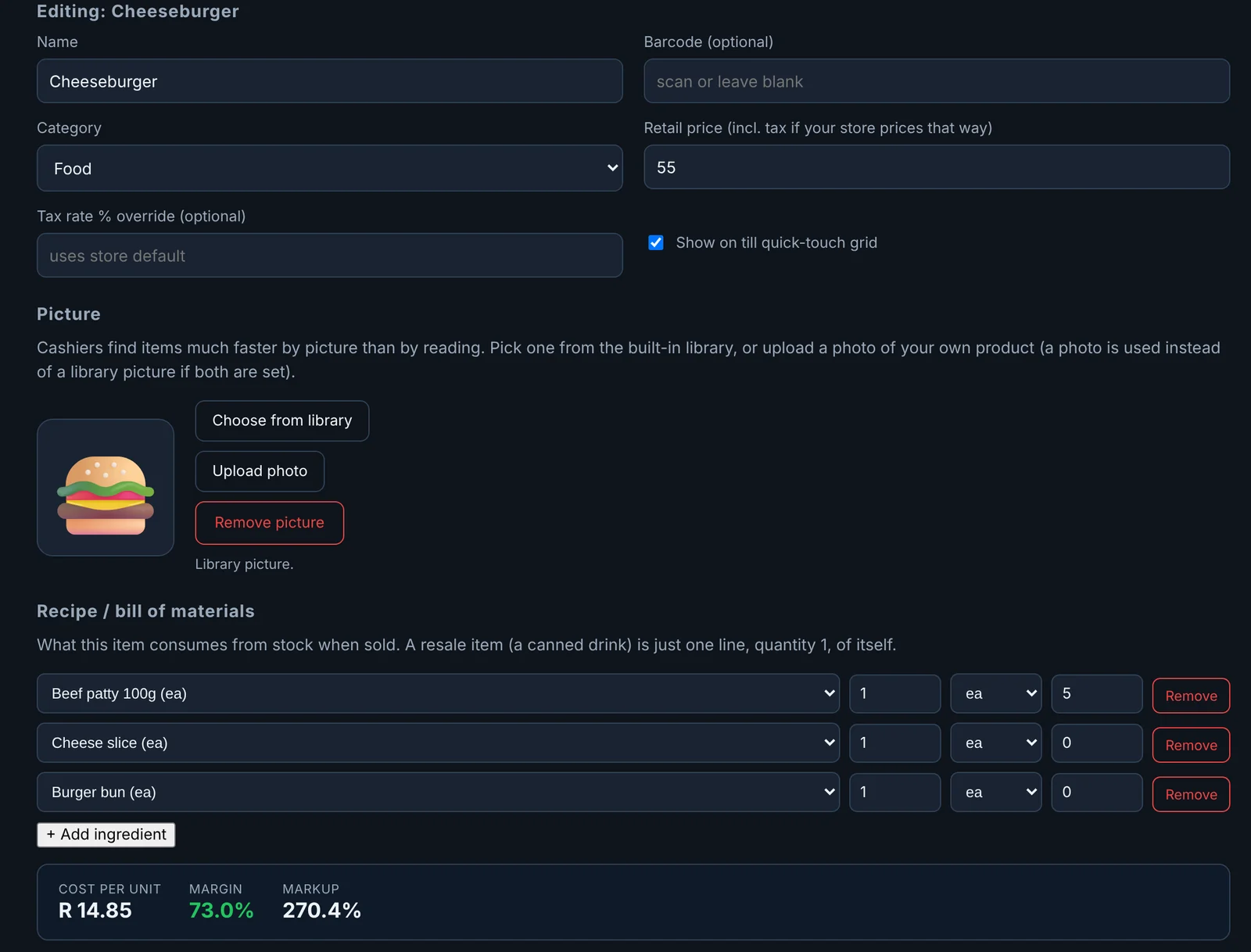
Enter a recipe once and BarePOS works out what each item costs to make, prep waste included. When a supplier raises a price, every affected margin updates straight away, so you can see when a price needs to go up.
Close and cash up
Count the drawer and type in what’s there. BarePOS tells you what should be in it and whether you’re over or short.
See how the day went
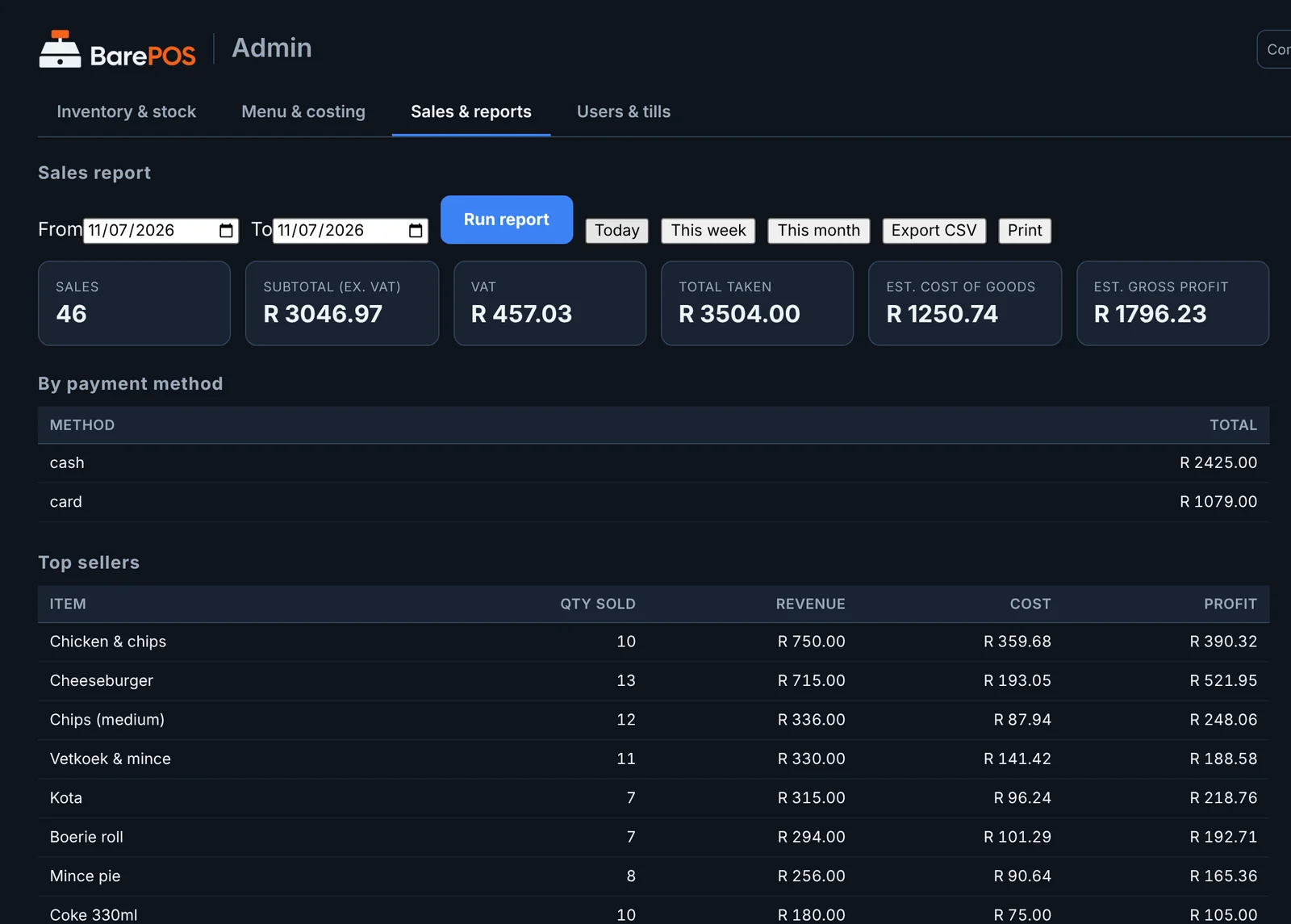
Sales, VAT, cost of goods, gross profit and best sellers for today, this week or this month. Export to a spreadsheet for your bookkeeper, or print it.
Keeps selling when the internet doesn’t
BarePOS runs on the PC at your counter, not in the cloud, and your sales and stock are stored on that PC. If the internet drops, the till carries on and checks in with OpDesk again once the connection is back. Put the PC on a UPS or inverter and load-shedding won’t stop a sale either.
- Your sales and stock stay on your own PC.
- Selling doesn’t need the internet.
- Opens in its own window, like any other program.
Works with the hardware you already have
No special drivers. If Windows can print to it, BarePOS can usually print to it too.
- Receipt printers
- Epson, Star, Bixolon, Citizen and most generic thermal receipt printers, by USB, network or serial. Your shop logo prints at the top of every slip.
- Cash drawers
- Plugged into the receipt printer. Opens with each sale, or when you tap Open drawer.
- Barcode scanners
- Any USB or Bluetooth scanner. Scan a can and it’s in the basket. Nothing to set up.
- Label printers
- Zebra and Zebra-compatible label printers, for shelf and price labels with barcodes.
- Touchscreens
- Big buttons sized for fingers, so a touchscreen PC makes a good till. A mouse works just as well.
Staff, VAT and the boring bits
- Each cashier logs in with their own PIN.
- Managers look after stock and the menu. Only the owner can add staff or change who’s a manager.
- 15% VAT is set up for you, with prices including or excluding VAT.
- Voiding a sale puts its stock back and keeps a record of who did it and why.
Is BarePOS right for your shop?
Made for
- Takeaways, kota and chips shops
- Coffee carts and tuck shops
- Spaza and corner shops
- Bakeries and food stalls with a fixed counter
Not built for
- Table service and running tabs
- Several branches on one system
- Bars, lodges and restaurants
Running a lodge, restaurant or bar? OpDesk is building OpTill for that.
From purchase to first sale
Get a licence key
Buy BarePOS from OpDesk. Your licence key arrives by email.
Download and enter your key
Run the small BarePOS installer and type in your key. It checks the key, then downloads and installs BarePOS.
Start selling
BarePOS activates itself the first time it opens. Add your menu and you’re ready.
Questions
Do I need the internet?
Only to install and activate BarePOS. After that it sells without a connection and checks in with OpDesk whenever it can.
Does it work with my card machine?
Keep using your own card machine. Take the payment on it as usual, then tap Complete card in BarePOS so the sale is recorded and counted correctly at cash-up.
Where are my sales stored?
On your own PC, in BarePOS’s data folder. Nothing about your sales or stock is sent to the cloud. Copy that folder to a flash drive now and then to keep a backup.
What PC do I need?
Any 64-bit PC or laptop running Windows 10 or 11. A touchscreen all-in-one makes a good till, but a mouse works too.
Can I use photos of my own food?
Yes. Upload a photo from your phone for any menu item and it appears on the till button. BarePOS shrinks it for you.
Does BarePOS handle VAT?
Yes. It’s set up for 15% VAT, with prices that include or exclude VAT, and every report splits out the VAT for you.
What if my PC breaks or I replace it?
Your licence is tied to one installation. Ask OpDesk support to move it to the new PC, and bring your data folder across to keep your sales and stock.
Can I run more than one till?
Today BarePOS runs one till per PC. Several tills sharing one set of stock and sales is on the way.
Get your menu onto a till
Download BarePOS, enter your licence key and ring up your first sale today.